October 18, 2026
Page templates, new blocks, and a drag-and-drop editor
Start a page from a template, add contact cards, link lists, audio and meeting schedulers, and rearrange blocks by dragging. Media processes sooner and analytics refresh every 15 minutes.
Version 2.20.0
Page templates
- Start a page from a template. When you create a page, pick a Spokenote template or one of your workspace's own templates.
- Manage your templates. A new Page Templates screen lets you review and delete your saved templates.
- Spokenote's templates use the new blocks. Every built-in template has been updated to take advantage of the block types below.
New block types
The page builder's add-block menu now offers:
- Contact Card with a photo, name, title, and ways to get in touch.
- vCard so visitors can save your contact details with one tap.
- Social Follow and Share Page with your choice of platforms, icon style, and color.
- Link List where each row can be a link, an email, a phone call, a text message, or an address.
- Audio. Uploading an audio file now creates a playable audio block on the page.
- Meeting scheduler for Calendly and HubSpot Meetings, one of each per page.
- Spacer and Divider for layout.
Some of these are advanced block types. If your plan does not include them, the tile tells you so.
Safer publishing. Publish now refuses a video, image, or audio block that has no media, so you never ship an empty player. Links on pages open only web, phone, text, and email addresses.
Sensible limits. A page holds up to 10 blocks and a text block holds up to 5,000 characters. The editor tells you when you reach either.
Page editor
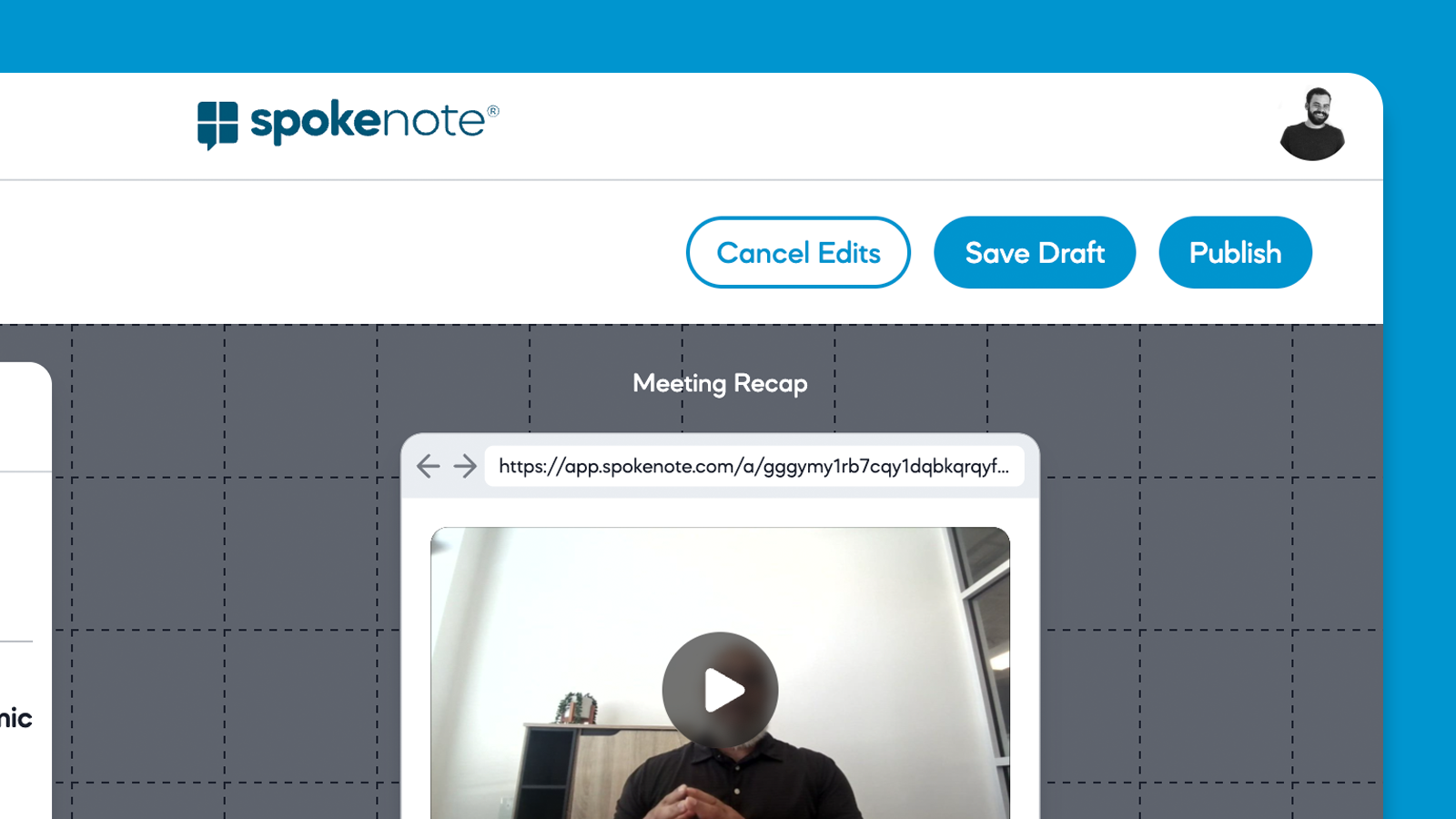
- Drag and drop. Rearrange blocks by dragging them. Drop a block anywhere below the last one to add it to the end.
- Undo and redo. Use the buttons or the keyboard shortcuts you already know.
- Text alignment. Set a text block's alignment from its settings.
- Live previews in the editor panel. Video and image blocks show the media itself, not just an "add media" button.
- Better on phones. The editor's tabs become a dropdown on small screens, and the action buttons combine into one.
- Clearer saving. Tooltips explain the difference between Save Draft and Publish. Block edits now count as unsaved changes, and the editor no longer warns about unsaved changes right after you saved a draft.
- Picks up where you left off. Refreshing the editor reopens the tab you were on.
Media
- Processing starts sooner. Videos begin processing the moment an upload finishes or a browser recording stops.
- Pages update themselves. When uploaded media finishes processing, every editor switches to the processed file without a reload.
- Larger previews. In the Media Library, open any item to preview it larger than its thumbnail.
- Better video thumbnails. Spokenote captures 12 frames from across the whole video and uses the first as the default thumbnail.
- Tidier library. Files that belong to a video, such as its generated frames, stay out of your library.
- Thumbnails for pages without video. A text, image, or audio page now shows a screenshot of itself in the Pages list, on Page Overview, and in link previews.
Analytics
- Fresher numbers. Session and campaign analytics refresh every 15 minutes, including the hour in progress. "Last updated" now shows the time of the most recent refresh.
- Campaign analytics shows every page, and its Download CSV downloads the table you see.
- Page analytics Download CSV downloads every session, not just the first screen.
Other improvements
- All Pages remembers your filters when you leave and come back, as the Media Library already did.
- Shared-content campaigns are edited in one place. Pages in a campaign with shared content no longer have their own editor. The edit button on those pages takes you to the campaign editor.
- The recipient's first screen shows what they can add. An unused page shows a video, photo, or audio icon to match what it accepts, and cycles through them when it accepts more than one.
- Workspace switcher and Publish respond on the first click.
- Text block styling fixes. Strikethrough displays correctly and headings have clearer weight and size.
Fixes
- Media that never finishes processing no longer leaves a page Locked or Errored for good, and no longer blocks a campaign publish.
- Opening a page whose published video never finished processing no longer shows "Something went wrong."
- Older QR pages show their video in the media panel again.
- A processing dynamic video no longer takes whichever clip finishes first as the page thumbnail.
- The image block is no longer affected by the dynamic video block.
- Reset Media works again, and clip media displays correctly.
- Media Library pagination no longer breaks the page editor.
- The page editor no longer asks about unsaved changes right after saving a draft.
- Page preview screenshots no longer show a broken image when the screenshot fails.
- The dashboard's session timestamp no longer looks stale on quiet workspaces.
Did this page help you?
Thanks for your feedback.